
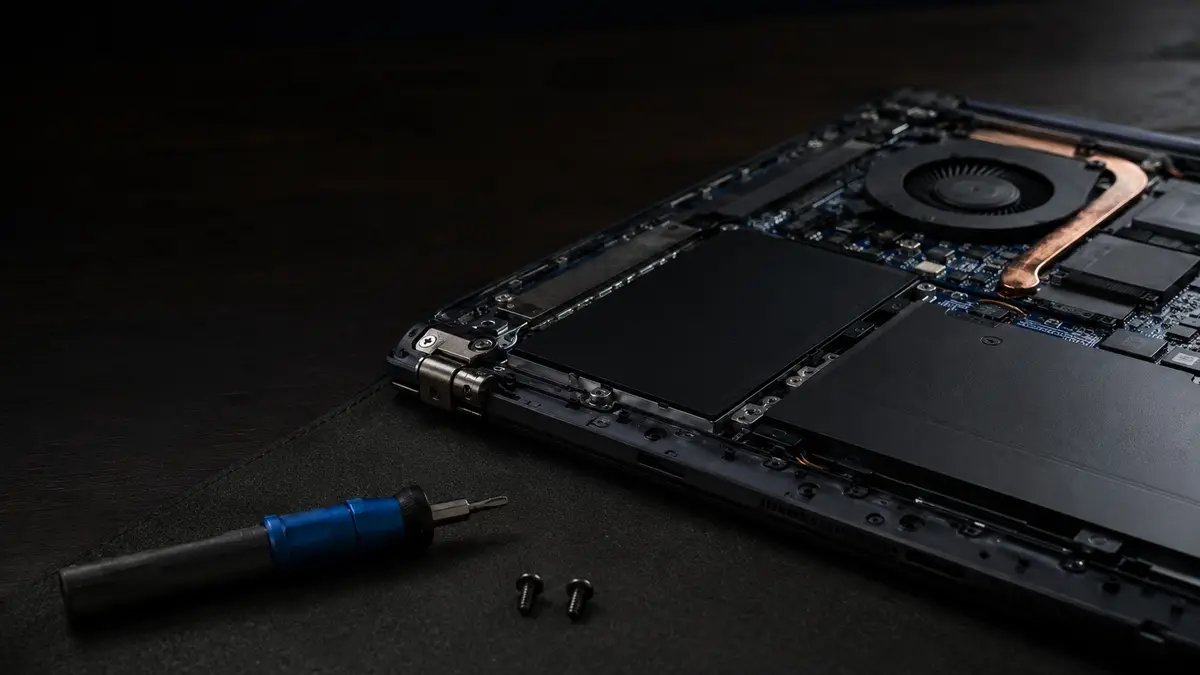
The most expensive words in tech support are “it is not worth fixing”. Sometimes they are true. Often they are just faster for the person saying them, and more profitable if there is a sales floor behind the counter. This is how I actually decide, so you can apply the same reasoning before you spend anything.
The one rule that settles most cases
If the repair costs less than about half of what a replacement that genuinely suits you would cost, and the machine has a couple of useful years left in it, repair is the better deal. That is the whole rule, and it resolves most situations.
The part people get wrong is the second half: “a replacement that genuinely suits you”. Comparing a $99 screen repair to the cheapest laptop on a shelf is not the right comparison, because that cheapest laptop is very often slower than the machine you already own. Compare the repair to what you would actually be happy with, and repair usually wins by a wide margin.
What is cheap to fix, and what is not
The distinction that matters most is whether the fault is in a part that can be swapped, or in the mainboard.
Generally worth fixing, almost regardless of the machine’s age:
- A drive upgrade, from $49 plus the drive. The single biggest improvement available on an older computer.
- More memory. Usually inexpensive, and often the difference between “unusable” and “fine”.
- A laptop screen, from $99 plus the panel. A cracked screen does not mean a new laptop.
- A battery. Consumable by design; replacing one is routine.
- A charging port, a hinge, a keyboard, a fan. All ordinary parts, all replaceable.
- Virus removal or a clean Windows reinstall, from $69 and $89. Software problems are not hardware problems, and a machine that feels finished is often just clogged.
Usually not worth fixing:
- A failed mainboard on an older laptop. The board is most of the value of the machine, so replacing it rarely makes sense.
- Liquid damage that has spread across the board, as opposed to a spill caught early.
- A machine whose processor is the actual bottleneck, since that cannot meaningfully be upgraded in a laptop.
- A laptop with memory and storage both soldered at the minimum, because there is no upgrade path at all.
Knowing which category you are in is exactly what the $40 diagnostic buys, and it is credited to the repair if you go ahead.
The Windows 11 question, which changed the maths
Microsoft ended support for Windows 10 in October 2025. If your computer is still running it, the machine keeps working, but it no longer receives security updates, so every vulnerability discovered from here on stays unpatched. Over time that makes it a steadily bigger target for ransomware and scams. I would not keep doing banking and email on an unsupported system indefinitely.
Windows 11 has stricter hardware requirements than Windows 10, mainly a newer processor and a security chip called TPM 2.0. Broadly, machines from 2018 onward usually qualify and older ones often do not. That takes a couple of minutes to check for certain, and it is worth checking before you make any decision, because it changes the answer:
- 1.If your PC meets the requirements, this is a non-event. It upgrades cleanly to Windows 11 and your files and programs come with it.
- 2.If it narrowly misses, a small hardware change sometimes gets you eligible, and an SSD at the same time makes it faster than it has been in years, for far less than a new computer.
- 3.If it is genuinely too old to qualify, that is a real argument for replacing rather than repairing, and it is the one case where I will more often say replace.
The thing to avoid is being told you need a whole new computer without anyone actually checking which of those three you are in.
Seven signs to stop using it and get it looked at
Some symptoms are inconveniences. These are the ones where waiting makes the outcome worse or risks your files.
- 1.Clicking, grinding or repetitive ticking from inside the machine. This is the sound of a mechanical drive failing. Power it off and leave it off. Every extra hour it runs is an hour it can get worse, and this is the single symptom where acting immediately most changes what can be recovered.
- 2.It will not boot, or it boots to an error and reboots in a loop. Sometimes software, sometimes a dying drive. Repeated forced restarts make the second case worse.
- 3.Files or folders that have vanished, or that open as garbage. Often the first visible sign of drive trouble, and a reason to stop writing anything new to it.
- 4.It shuts itself off under load, or runs blisteringly hot. Usually heat, sometimes a failing power supply. Both are fixable; both can damage other parts if you keep going.
- 5.A battery that has swollen and is pushing the laptop case apart or lifting the trackpad. Stop using it. A swollen lithium battery is a genuine fire and injury risk, not a cosmetic problem.
- 6.Blue screens or crashes that are getting more frequent. Failing memory, a failing drive or overheating. Frequency increasing over weeks is the signal.
- 7.Any liquid spill, even a small one that seems fine. Corrosion progresses for days after the event. The machine working right now is not evidence that it will keep working, and getting it opened and cleaned early is far cheaper than a board replacement later.
With a spill or a clicking drive, one specific piece of advice: do not try to dry it out and power it on to “test” it. Corrosion under power does far more damage than the liquid alone. Bring it in still wet.
The part nobody costs properly: your files
When people weigh repair against replacement they price the hardware and forget the data. The photos, the documents, the tax records, the years of accumulated everything. None of that has a SKU. You cannot buy it back at any price.
This is why “just replace it” is sometimes the more expensive answer. A machine that will not turn on very often has a perfectly healthy drive inside it, and the files come off in an afternoon. If you replace the computer and dispose of the old one without checking, that is what gets thrown away.
So even in the cases where replacing is genuinely right, get the drive checked and the data off first. That part is worth doing regardless of which way you go.
How I actually decide
I open the machine, find out what is truly wrong, and then tell you three things: what it needs, what that costs, and what I would do if it were mine. That last one is the part a sales counter cannot give you, because it has a quota and I do not.
I will tell you when a repair is not worth it. I will also tell you when it is a five-minute fix I am not going to charge you for. Both of those cost me money in the moment and are the reason people come back, which is a better business than a single inflated invoice.
It starts with the flat $40 diagnostic, credited to the repair if you proceed, and you get a diagnosis the day you drop it off. Call or text (604) 817-1069, or book a time online.
Need a hand with this?
Honest, upfront pricing in Lake Country, Kelowna and Vernon. Book a repair or give me a call.
Explore
Bryce Elliot
Owner, Lake Country Computer Repair, nearly 20 years experience