
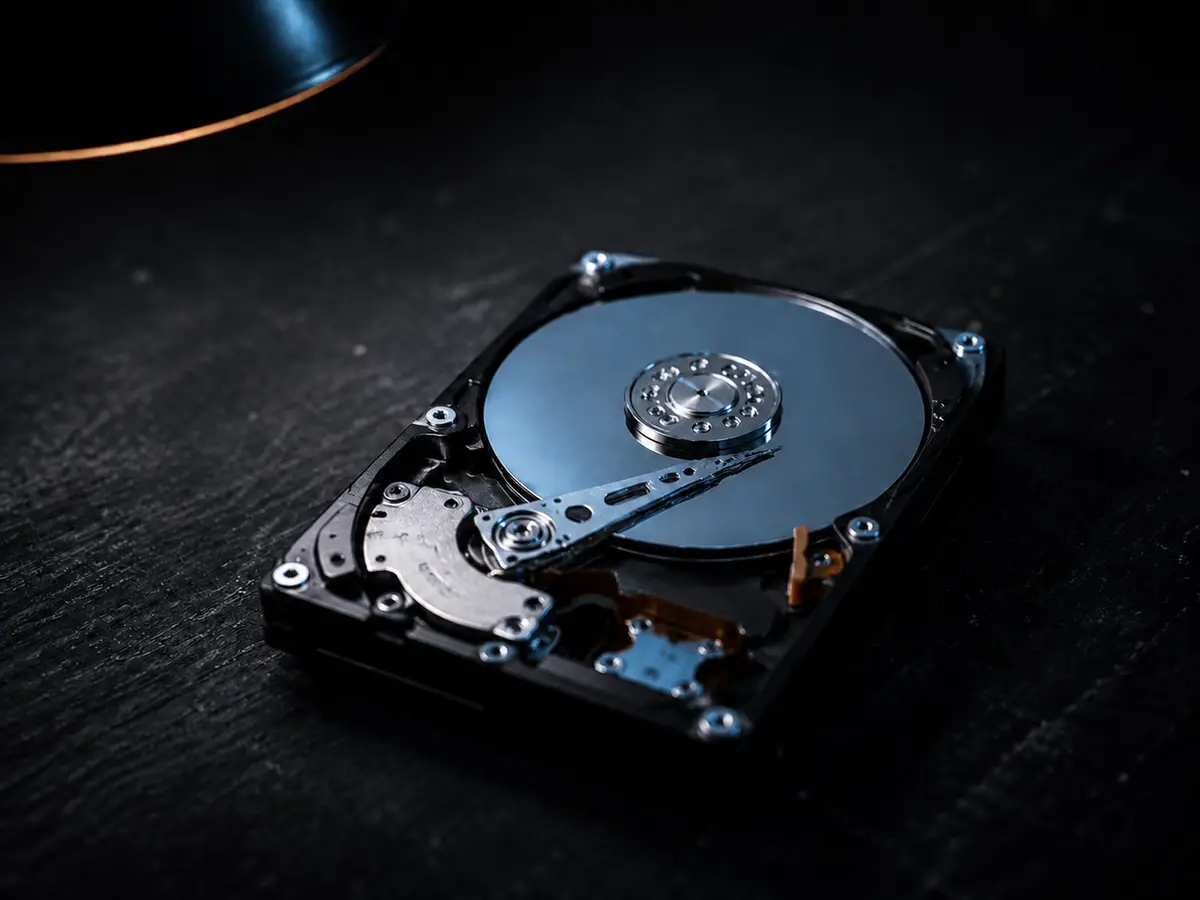
Every hard drive ever made will eventually fail. That is not pessimism, it is mechanical reality. Backblaze publishes failure rates across a fleet of hundreds of thousands of drives every quarter, and every model on the list fails at some rate. The only question is whether it fails before or after you have a copy of what is on it.
So this covers both halves: the backup that makes a dead drive a non-event, and what actually happens if you are reading this because a drive has already died.
If your drive is failing right now, read this first
Three things, and the first one matters more than everything else on this page.
- 1.If the drive is clicking, grinding or ticking, power the machine off and leave it off. Every extra hour a failing drive spends powered on is an hour it can get worse, and this single decision changes what is recoverable more than anything I do afterwards.
- 2.If it got wet, bring it in still wet. Do not dry it out and power it on to see if it works. Corrosion under power does far more damage than water alone.
- 3.Stop running recovery software on it. Each scan is another few hours of stress on hardware that is already dying, and repeatedly scanning a physically failing drive is the most common way people turn a recoverable drive into a lab job.
The instinct in all three cases is to keep trying. That instinct is the thing that costs people their files.
How to tell a drive is on the way out
Mechanical drives usually warn you. The signals, roughly in order of urgency:
- Clicking, grinding, or a repetitive tick. Stop now. This is physical.
- The computer has become dramatically slower, freezing for long stretches for no obvious reason. A drive struggling to read is one of the most common causes, and it very often presents as “it got slow” long before it presents as “it will not start”.
- Files or folders that have disappeared, or that open as gibberish.
- Errors about corrupt files, or Windows repeatedly wanting to check the disk on startup.
- It will not boot, or boots to an error and loops.
Solid-state drives are different and less considerate. They tend to fail suddenly and without warning noises, because there is nothing mechanical to make a noise. Usually the controller chip fails while the memory chips holding your data stay perfectly intact, which is small comfort, because getting to them is harder.
What can realistically be recovered
In most cases, if the drive still spins up or is detected at all, quite a lot. A mechanical drive rarely dies all at once; it develops bad sectors, and the regions that have not gone bad are usually still readable. That is why a drive can be completely unbootable and still full of intact photos: starting Windows needs thousands of files in the right places, whereas your holiday photos only need their own sectors to be alive.
The right approach is to image the drive first, copy it sector by sector onto healthy storage, and then recover from the copy. It means the failing drive only has to survive being read once, instead of being hammered repeatedly by recovery attempts.
What comes back most reliably is self-contained files: documents, photos, music, video. What is more fragile is anything held in a single large container, mail stores, databases, virtual machine disks, because one corrupted region can damage the whole file.
What is honestly not recoverable, and I would rather say so than take your money:
- Physically destroyed platters. Needs a clean-room lab, and I refer those out at no markup rather than attempt a long shot.
- Encrypted drives with no key or password.
- Most current ransomware strains, without a backup.
- Sectors that have been overwritten. Deleted-and-overwritten is genuinely gone.
- Deleted files on an SSD, often within minutes. A feature called TRIM proactively erases blocks the system marks as free, which is good for performance and terrible for recovery. On an SSD, speed matters enormously.
A typical recovery here is $120 all in, starting with a flat $40 assessment that comes off the total if you go ahead. If you decide not to proceed once you know what is involved, you pay the $40 and nothing more. A laptop that simply will not power on is the best case of all. The drive is usually undamaged and the files often come off the same day.
Now the part that makes all of that unnecessary
The rule worth knowing is sometimes called 3-2-1, and it sounds more complicated than it is: three copies of anything you care about, on two different kinds of storage, one of them somewhere else physically.
The reason for “somewhere else” is that the disasters which take out a computer often take out everything next to it: a break-in, a fire, a flooded basement, a power surge. An external drive sitting beside the machine it backs up is protection against drive failure only, which is one of several ways to lose your files.
Cloud backup
Automatic, off-site by definition, and hard to forget about, which is its real advantage, because the backup people actually have is the one that needed no discipline. It costs a few dollars a month, and restoring a very large amount of data takes a while over a home connection.
One distinction worth being clear on: a sync service like OneDrive, Google Drive, iCloud or Dropbox is not the same thing as a backup. Sync means the two copies match, so if a file is deleted or encrypted by ransomware, that change syncs too. Most of these services keep version history that can save you, but you have to know it exists and how to use it. A backup keeps a separate copy at a point in time. They are complementary, not interchangeable.
External drive
One-off cost, fast to restore from, and entirely in your hands. The weaknesses are that it only protects you if it is actually plugged in and running, and that it is sitting in the same room as the computer. Windows has File History and Macs have Time Machine built in; both work well and cost nothing beyond the drive.
If you use an external drive as your only backup, leave it connected so it runs automatically. A backup drive in a cupboard that gets plugged in when someone remembers is, in practice, a backup from eight months ago.
What I actually recommend
Both, and for most people it is genuinely this simple: cloud backup running automatically in the background, plus an external drive doing a local copy. The cloud covers the fire and the theft; the external drive means you are not waiting on a download when you need everything back at once.
If you are only going to do one thing, do the cloud one, because it does not depend on you remembering. And whichever you choose, test it once: try restoring a single file. An untested backup is a hope, not a backup, and finding out it never worked on the day you need it is a bad way to learn.
I can set either up so it runs without you thinking about it, and it is a sensible thing to add while a machine is already on the bench. If you have lost files or a drive has died, call or text (604) 817-1069, and if it is clicking, switch it off first.
Need a hand with this?
Honest, upfront pricing in Lake Country, Kelowna and Vernon. Book a repair or give me a call.
Explore
Bryce Elliot
Owner, Lake Country Computer Repair, nearly 20 years experience